Geto App Mods app for Android description
The only reason I created this app is to turn off that damn Developer Options when using a banking app. The only annoying thing about it is you have to go to the Settings app. When you turn off that switch button, your Developer Options configurations will be reset to default. The good thing is that when you modify your settings through its Shared Preferences, you won’t lose all your settings once the Developer Options are modified.
So basically, you have to grant this app with android.permission.WRITE_SECURE_SETTINGS in order for it to modify your Settings values.
This guide is only for Android 11+ without using computer. If you are on Android below 10, this YouTube tutorial can help you: https://www.youtube.com/watch?v=k4k297qItY4
Installation:
-
Install Shizuku and aShell:
- Download and install Shizuku and aShell from the Google Play Store.
-
Set Up Shizuku:
- Refer to the Shizuku documentation or follow the guidelines.
-
Open aShell:
- Launch aShell on your device. If the app does not show any errors then Shizuku service is working properly.
-
Grant Necessary Permissions:
- In the aShell command box, enter the following command and press Enter: pm grant com.android.geto android.permission.WRITE_SECURE_SETTINGS
- Ensure that no errors are reported during the execution of the command.
-
Start Using Geto:
- If the permission is granted successfully, you can now start using Geto without any issues.
Geto Settings:
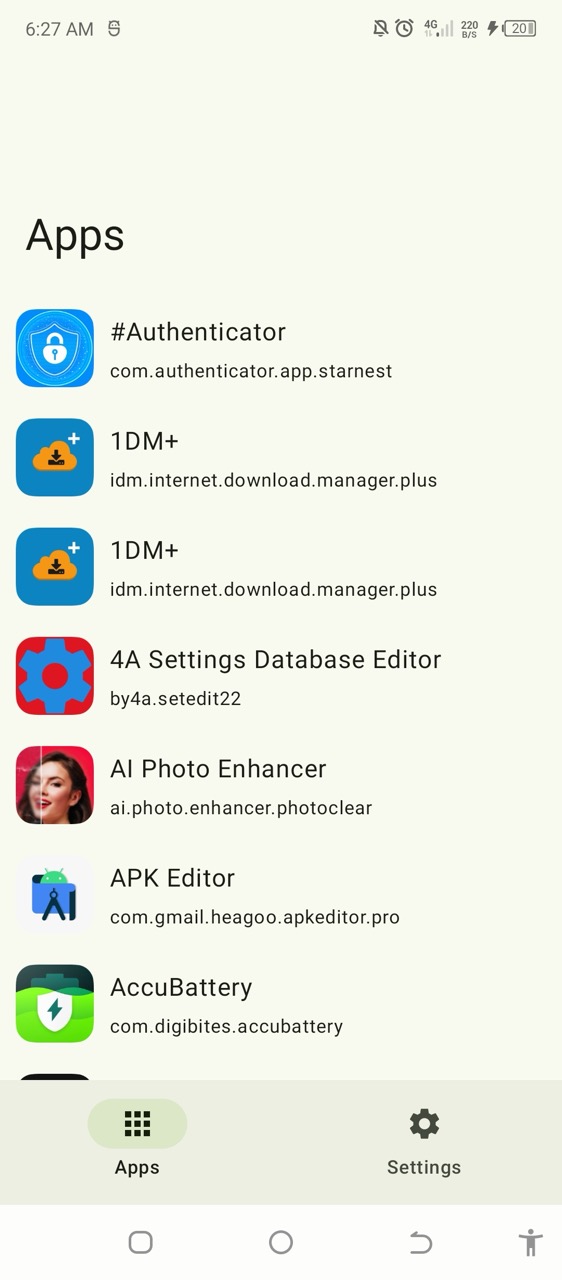
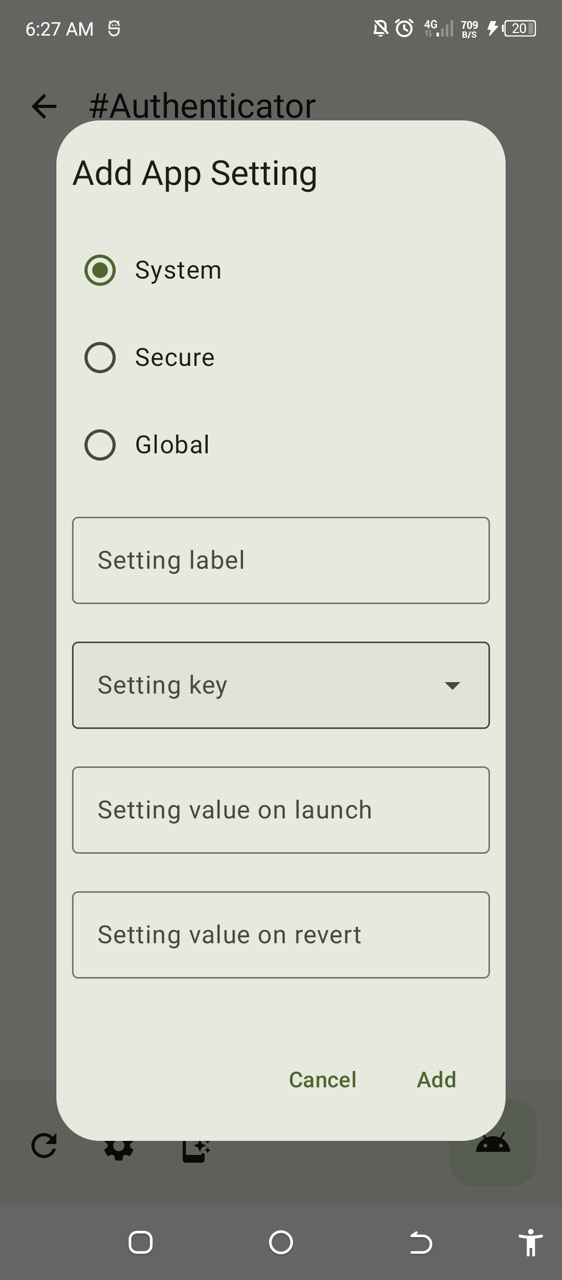
Here are some settings you can experiment with. Simply choose an app from the list, click the Add Settings button, and proceed to fill in the provided options. Refer to the examples below for guidance. If you have unique settings that work well on different devices, please reach out to me so that I can incorporate them into this list. Your contributions are appreciated!
To apply your settings to a specific app, click Launch App. Remember to reset your preferences after exiting the app by clicking the Refresh button.
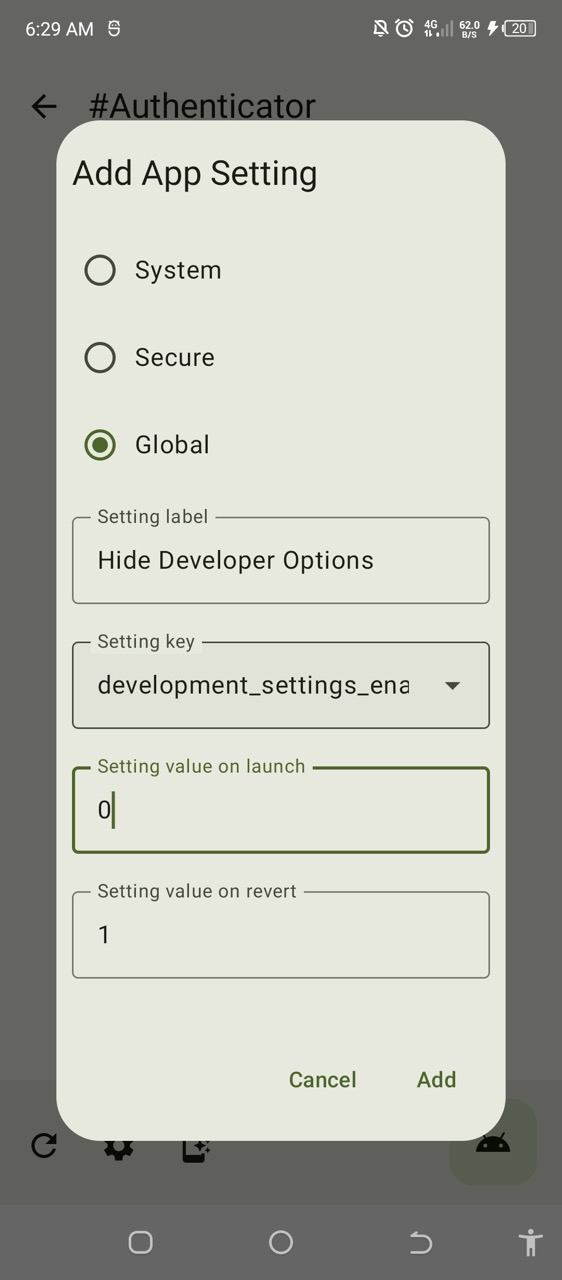
- Hide developer options detection in any apps:
- Type is Global
- Settings label is Hide Developer Options
- Settings key is development_settings_enabled
- Settings value on launch is 0
- Settings value on revert is 1